
So I did something a bit crazy recently (again). I challenged myself to install Home Assistant AND Ollama from scratch on the brand new ZimaBoard 2 using ZimaOS — and get them talking to each other — all in under 10 minutes. Sounds impossible, right?
Well, spoiler alert: I actually managed to do it! And not only that, but I even had time left to download a tiny local LLM model (Qwen2.5:0.5b) and set up a Home Assistant conversation agent before the timer ran out. The whole thing felt like one of those cooking shows where everything somehow comes together in the last second.
But here’s where it gets really interesting…
Table of Contents
Testing the Limits: Weather Forecasts and AI
After finishing the challenge, I wanted to see what this setup could actually do in real life. So I grabbed an hourly weather forecast from the Met.no service in Home Assistant and asked my local AI model to summarize it into one sentence.
The result? Well… it was okay. Kind of accurate, but not exactly what I was hoping for. The little model tried it’s best, but sometimes you need more power, you know?
That’s when I decided to switch things up and try the absolute monster—the gpt-oss:120b-cloud model. And guess what? Switching between AI models in Home Assistant is ridiculously easy. Like, click-click-done easy. I also showed how you can make your automation focus on specific weather features—whether you care about rain, UV index, wind, or whatever else keeps you up at night.
Want to see exactly how I did all of this? Check out the full video here:
🎁 FREE PDF GUIDE: Master AI in Home Assistant with Ollama
Speaking of making this whole thing work for you—I’ve put together a complete PDF guide that walks you through everything step-by-step. I’m talking about:
- How to properly set up Ollama with Home Assistant
- Creating actually useful, real-life AI automations (not just gimmicks)
- Tips and tricks I learned while testing
👉 Download Your FREE PDF Guide Here
Just type in your name and email, confirm your subscription (it’s double opt-in as the Bots are getting smarter and asmarter), and I’ll send the PDF straight to your inbox.
You’ll also get my free newsletter with new content, cool updates, and info about my training courses. It’s a free newsletter and if you don’t like it – no hard feelings – you can unsubscribe anytime if it’s not your thing.
What is ZimaBoard 2 Anyway?
Okay, let’s talk about the star of the show—the brand new ZimaBoard 2 itself.
This thing is basically a single-board server that punches way above it’s weight class. According to the official ZimaSpace page, it’s designed to be a compact powerhouse for home servers, NAS setups, and yes—running AI models locally or in the cloud.
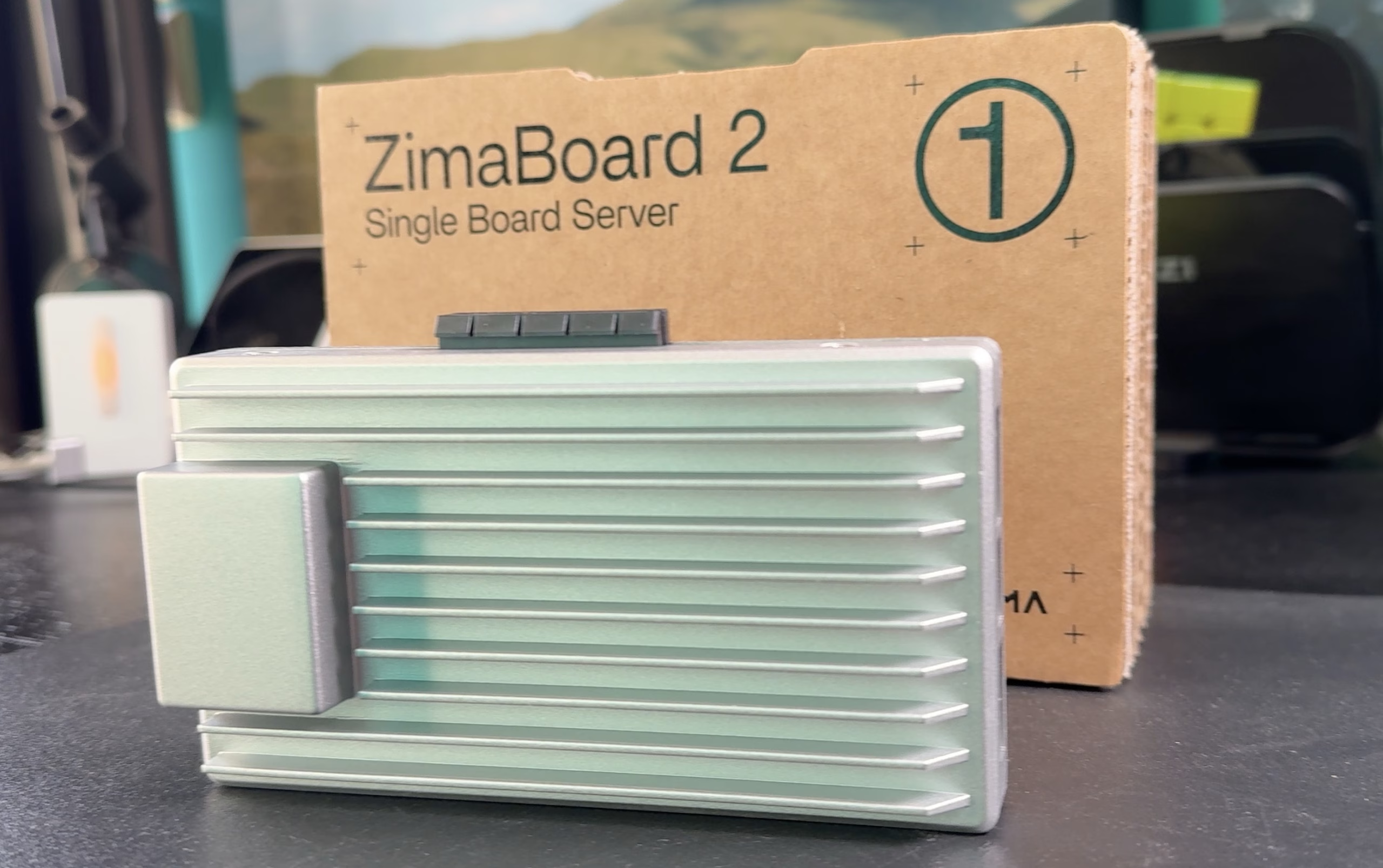
What makes it special? Well, it comes with modern N150 processor, 8G or 16G of RAM, dual 2.5GbE network ports, 32 or 64G of storage + multiple SATA connections for more storage, and here’s the kicker—a PCIe slot. That opens up a whole world of possibilities for expandability (more on that later).
The ZimaOS software that comes with it is actually really impressive too. Clean interface, tons of apps available (seriously, hundreds of them), and it makes setting up complicated stuff surprisingly simple. I was genuinely impressed how smooth everything felt.
Curious about the specs and pricing? Check out the ZimaBoard 2 here:
- ZimaBoard 2 official store (exclusive coupon code: KPeyanski15)
- ZimaBoard 2 on Amazon & Full ZimaBoard Amazon Store
(Quick note: These are affiliate links, which means if you purchase through them, I might earn a small commission at no extra cost to you. It’s just a way to support the blog while you grab cool tech!)
The Big Question: ZimaBoard 2 + NVIDIA GPU + HA + Local AI Models?
Here’s something I keep thinking about…
What if we took this even further? What if I grabbed a dedicated NVIDIA GPU, stuck it in that PCIe slot, and ran some serious local AI models on the ZimaBoard 2 with Home Assistant and Ollama?
I mean, it could be absolutely epic. Or it could be a complete disaster. But either way, it would be one heck of a test, right?
Would YOU want to see that kind of detailed review? Let me know in the comments below! If enough of you are interested, I’ll do it! And I’ll share: the good, the bad, and the potentially melted components 🤣
The Not-So-Perfect Parts (But Are They Deal Breakers?)
Now, I wouldn’t be doing my job if I didn’t mention a few things that made me scratch my head while testing the ZimaBoard 2.
- First up—the fan situation. ZimaBoard 2 is sold as a fanless device, which is great for silent operation. But then… they include an optional fan in the box. It’s like buying a waterproof device that comes with a tiny umbrella or something. I mean, sure, it’s definitely better to have it and not need it than to need it and watch your CPU turn into a space heater. But it sends a bit of a mixed message, doesn’t it?
- Then there’s the Wi-Fi situation—or should I say, the lack of Wi-Fi. Look, I totally understand this is a serious server board and you want those stable 2.5 gigabit ethernet connections.
But sometimes I just want to tuck this thing in a corner for some light apps without running cables all across my house like some kind of networking spider web. Sure, I can add a Wi-Fi adapter, but then it gets all bulky and—here’s the real problem—it eats up the one thing that makes this board special: that precious PCIe slot.
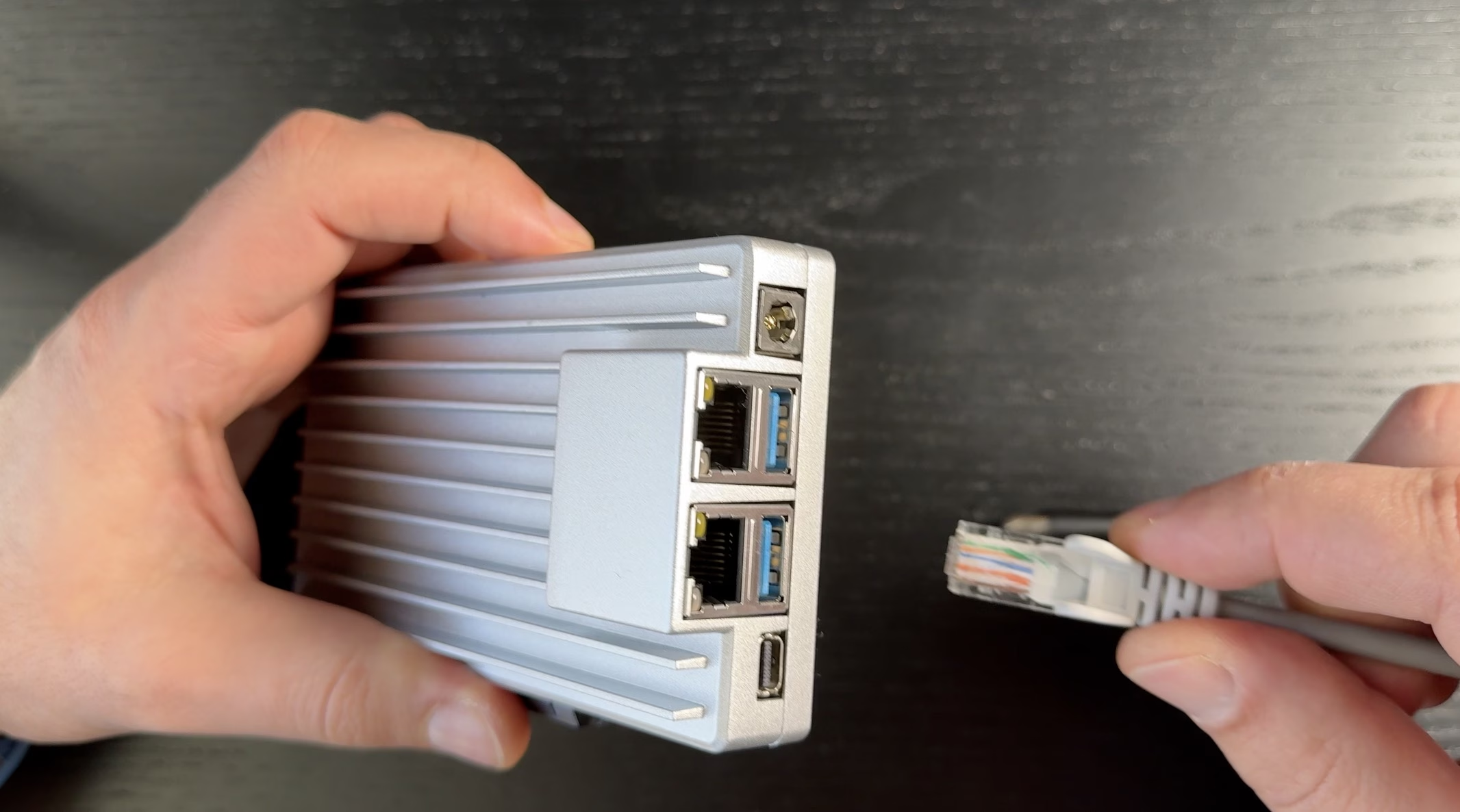
- Speaking of that slot, it’s a PCIe 3.0 x4. Now, it’s “open-ended,” which is a fancy way of saying you can physically stick a massive graphics card in there if you want. But don’t let the looks fool you—it’s still only running at x4 speeds, wich is not optimal for high-end GPUs.
But you know what? That actually gave me the idea I mentioned earlier. If I can find a GPU that works well with these limitations… imagine this: ZimaBoard 2, a dedicated GPU, Home Assistant, and Ollama running local AI models right there on the device. Detailed testing, real-world performance checks, the whole nine yards. Could be a disaster. Could be a masterpiece. Only one way to find out, right?
If you want to see me attempt this experiment, let me know in the comments! If enough of you are curious, I’m absolutely doing it.
But honestly? These are tiny hiccups in an otherwise fantastic package. The ZimaBoard 2 is genuinely an top-class device with really great software. I loved working with ZimaOS and exploring the hundreds of apps available in their ecosystem. For what it does and how it does it, I’m really impressed.
Full Transparency Time
Before we wrap up, I want to be completely upfront with you all. The ZimaBoard team sent me this device for a paid review. However—and this is important—they haven’t put any limitations on what I can say or tried to script this content in any way. As always, all the opinions you’re hearing are 100% my own. If I think something’s great, I’ll tell you. If something bugs me, you’ll hear about that too.
I believe in honest reviews, and that’s what you’re getting here.
Ready to Start Your Own AI Journey?
If this whole ZimaBoard 2 + Home Assistant + Ollama setup has you excited (and honestly, it should), here’s what I recommend:
- Watch the full video to see everything in action: [YOUTUBE VIDEO]
- Grab your free PDF guide with all the detailed instructions
- Check out the ZimaBoard 2 if you’re thinking about getting one:
- ZimaBoard 2 on Amazon
- Browse the ZimaBoard Store (use that code to get it cheaper: KPeyanski15)
And most importantly—let me know in the comments what YOU want to see next. Should I push this board to its limits with a GPU test? Are there other AI experiments you’d like me to try?
The best content ideas always come from you guys, so don’t be shy!
Thanks for reading, and I’ll see you in my next HA + AI article 👉 here!
P.S. — Seriously, that PDF guide took me forever to put together. Go grab it. It’s free, and it’ll save you hours of headscratching. You’re welcome. 😊