

Free cloud AI for Home Assistant sounded like something I had already tried. Then my old route changed, and I went looking again. The surprise was Groq, a cloud service I had already been using in my own automations for weeks. My aim was simple: give Home Assistant a pile of weather data and get one short answer I could actually read. That is the Groq AI Task idea behind this project.
I do not want an AI model to run my home. I want a helper that can make the information I already have less tiring to read. A forecast with lots of hourly entries is useful data, but I rarely want to stare at every row before I leave the house. A compact summary can be enough. My full setup and example automation are in the free Groq PDF guide; this article is the big-picture version.
Table of Contents
Why I tried a Groq AI Task
When I first looked for a replacement for my old cloud-model route, I did not want to build a home server for one small job. Groq runs the model in the cloud, so the large model is not sitting on my Home Assistant machine. Home Assistant sends a task and receives an answer. That trade is convenient for me, provided I am happy with the internet requirement and the data I choose to send.
Groq is not Grok with a spelling mistake. Those similar names have confused more than one person, me included. The Groq AI Task in this project comes from a community Home Assistant integration. It is not a built-in promise that every Home Assistant installation has the same buttons or model choices. The project currently calls for Home Assistant 2026.10 or newer, so check its own notes before you try it. I also keep the API key private, because an API key is a password for an app, not a prop for a video thumbnail.
The result I wanted was deliberately modest. I asked for a readable weather summary, not a system that decides whether I should open a window or order an umbrella. If the wording is not useful, I can change it. If a task does not need cloud AI, I can skip it. That is a much better starting point than connecting every device just because the integration offers a checkbox.
Tired of reading?
The video will show the Groq AI Task and the real Home Assistant result on screen. Watch it here when it is ready – https://youtu.be/H2G8N22FqG8 For now, keep reading for the idea, the limits, and the free PDF with the exact setup. A settings list alone would be a rather boring movie anyway.
What the Groq AI Task actually gives me
At the center is an answer I can read at a glance. In the planned demonstration, Home Assistant supplies hourly weather information and the Groq AI Task turns it into a short briefing. The point is not that AI knows the weather better than a weather service. It is that the answer can pull the useful parts of existing data into plain language. When the video is recorded, I will show the actual task response and automation trace rather than pretending a diagram is proof.
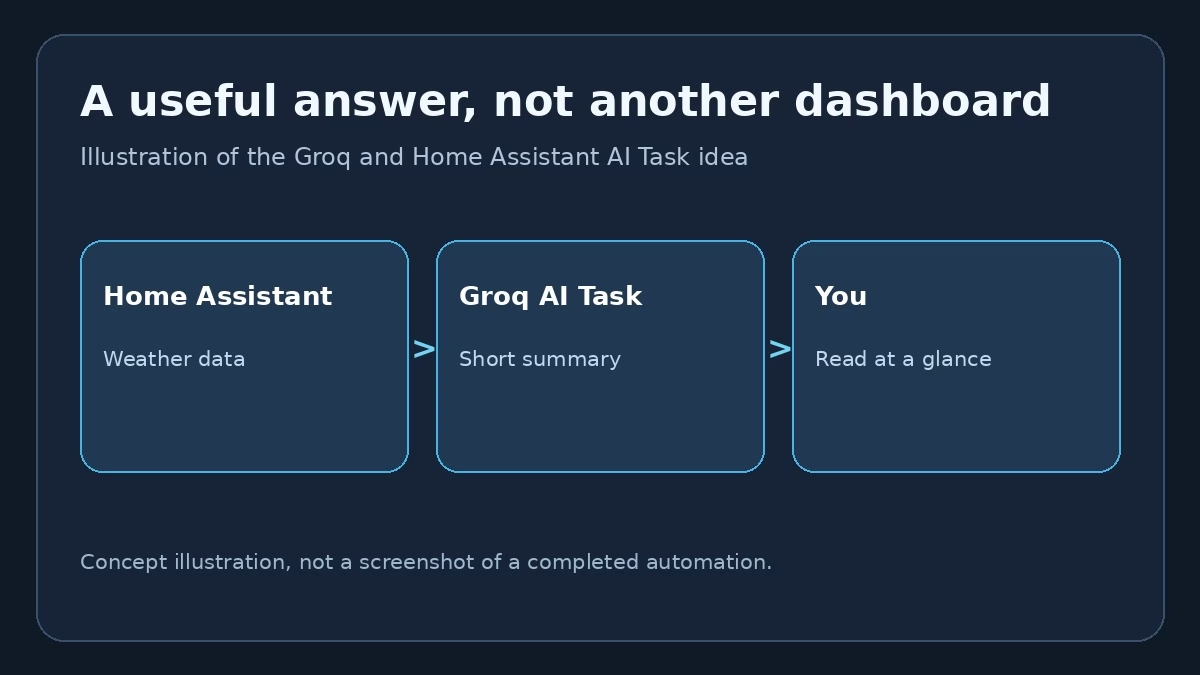
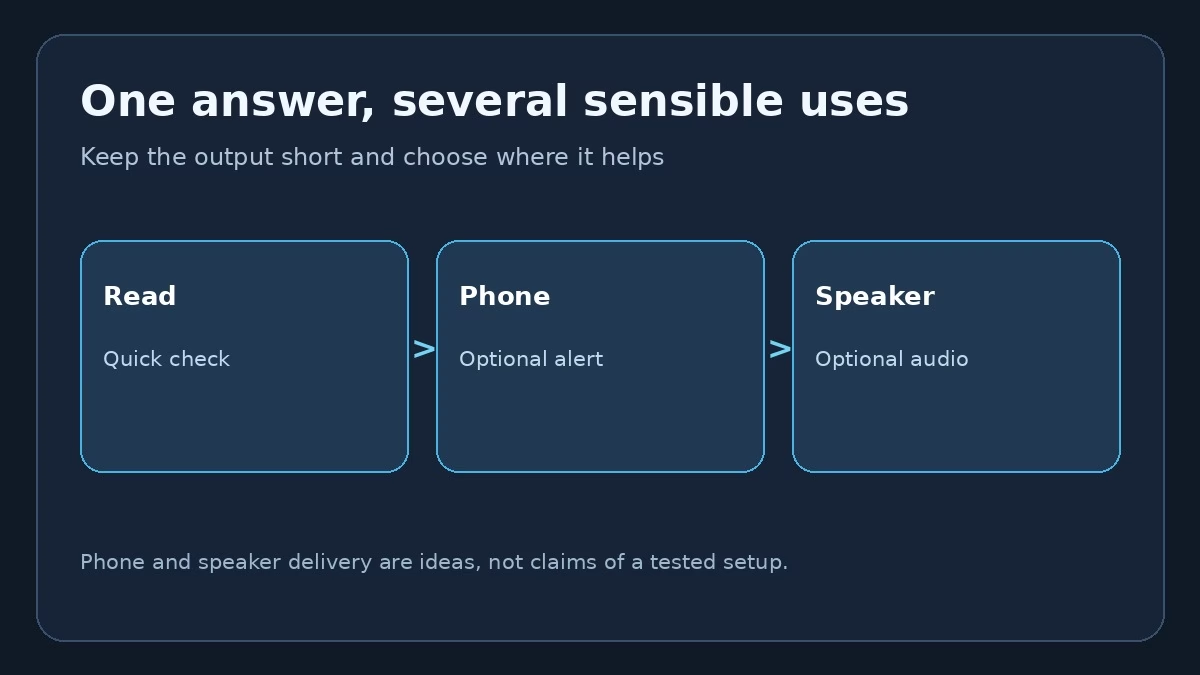
This is why the Groq AI Task interests me more than a chatbot that only answers a question after I open an app. A small automation can ask at a useful moment. I could read the response on a dashboard. I could also send it to my phone or speakers if I decide that helps. Those last two are possibilities, not a claim that I tested every delivery method here. I would start with the plain answer, then add another destination only if I really use it.
There is also a nice practical boundary: the answer is a note, not an instruction to the house. I can check it against the original data. If a response looks odd, I can ignore it and inspect the source. That matters when weather changes quickly or a model phrases something too confidently. Home Assistant still holds the real sensor and forecast data. The Groq AI Task is a way to describe that data, not replace it.
Free has a small asterisk
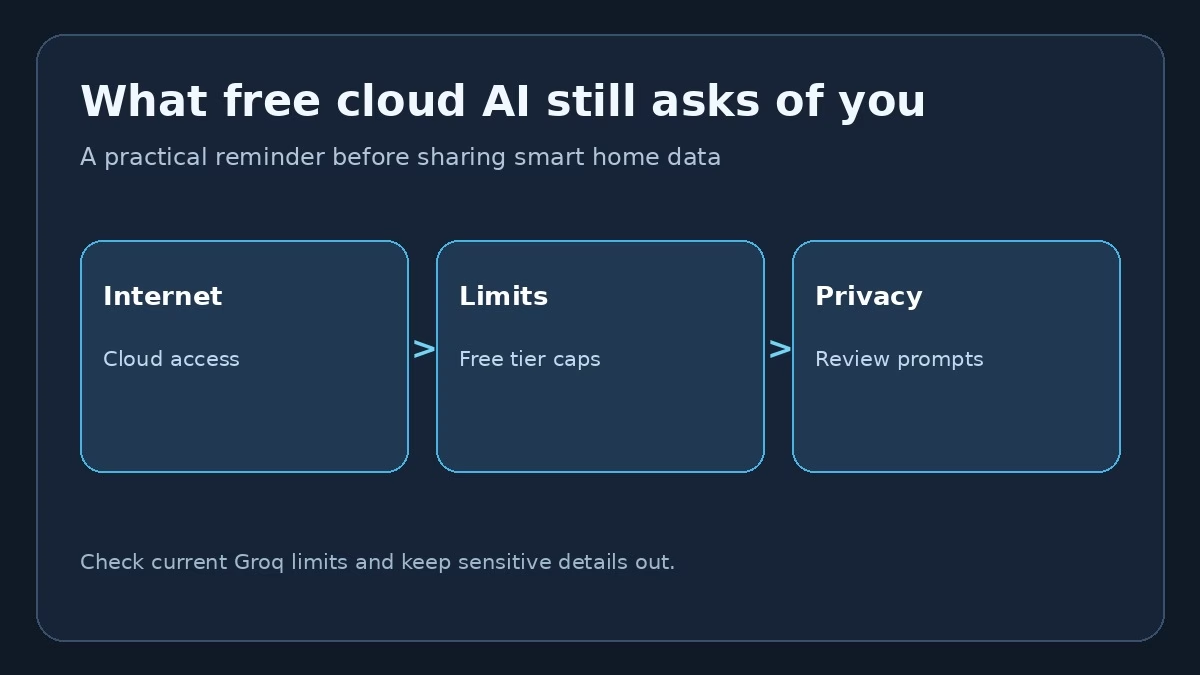
Groq has a free plan, which is why I explored this route. Free does not mean unlimited. Groq applies request and token limits, and the exact limits can depend on the model and account. Its official rate-limit documentation says to check the current limits in your account. I am not promising a number of calls per day for every reader, because that number can change. In my own use, several calls a day have worked without hitting a limit, but that is my experience, not a guarantee for your setup.
The integration also offers Free-Tier Protection. Its purpose is to pause a service when Groq reports a request or token limit, then let it resume after the reset time. That is useful, but I would still keep an ordinary fallback for anything important. A weather briefing can wait. An urgent alert should not depend on a cloud model returning exactly the words I hoped for. This is an experiment with a useful outcome, not a new safety system for my home.
Privacy deserves the same plain talk. The Groq AI Task sends what I put in a prompt to a cloud service. I avoid secrets and details I would not want to share. The less data a task needs, the less I send. Internet access is required too, so I do not treat this as an offline assistant. If local-only processing is the priority, this route may not be the right one for you, even if the free price sounds nice.
A few more things I would try later
The community integration describes other services besides text generation, including image recognition, speech to text, and text to speech. They are separate ideas. This article and the video focus on the Groq AI Task text result. I am not claiming that I tested every voice or image route in the same demonstration. I would rather show one useful result clearly than wave at a long feature list and call that a tutorial.
If you already have a useful automation, think about the part that produces too much text or too many numbers. Could a short summary help a person make sense of it? A daily forecast is one example. A long event log might be another, if you are comfortable sharing the chosen data with a cloud service. The trick is to pick a small, reversible task whose answer you can check. That keeps the Groq AI Task helpful instead of mysterious.
Get the full Groq setup in my free PDF
The complete setup belongs in the PDF, not in a half-remembered list of clicks here. It includes the Groq account and Home Assistant side, plus the example weather automation and its test details. Get the PDF for the exact setup at my Groq guide page. Then you can follow it at your own pace without pausing the video ten times.
To get the PDF, type your name and e-mail. You will receive an e-mail from me to confirm you are not a robot, and the PDF will be sent to your inbox. You’ll also be subscribed to my newsletter where I share new content, updates, and my exclusive AI and HA challenge. It’s free and you can unsubscribe anytime with one click.
If this Groq AI Task makes you want to try more Home Assistant AI ideas, my Home Assistant AI Recipes book is free from me; you cover print and shipping. It still cannot cook dinner. I checked twice.
If you want more
Browse more practical ideas in my AI articles on peyanski.com. I will add the video link above once the Groq demonstration is published. Until then, the PDF is the place for the exact steps, and this article is the short answer to why I think the setup is worth trying.