

Home Assistant advanced mode is going away, and I think that is a good thing. The old switch made a normal setting feel like it was hidden behind a little warning sign. You wanted one option, but first you had to enable a big mode that opened a pile of other things too. It was like asking for one screwdriver and being handed the keys to the whole hardware store.
That does not mean Home Assistant is removing useful features or turning every account into an admin account. Admin is still admin. The change is about where settings live and how they are named. Instead of one Home Assistant advanced mode switch deciding what shows up, a setting can be visible when it makes sense, sit under Show more, or live beside the feature it changes.
It sounds like a small Home Assistant advanced mode change. For anyone who has ever followed an old guide that starts with “enable Advanced mode,” it makes the app feel a lot less awkward.
Table of Contents
The old switch was doing too much
The problem with Home Assistant advanced mode was never that people needed help. The problem was that one switch hid a mix of unrelated stuff: add-on visibility, options, parts of the screen, and tools. If a guide wanted you to change one setting, it could make you feel as if you had to unlock the whole app first.
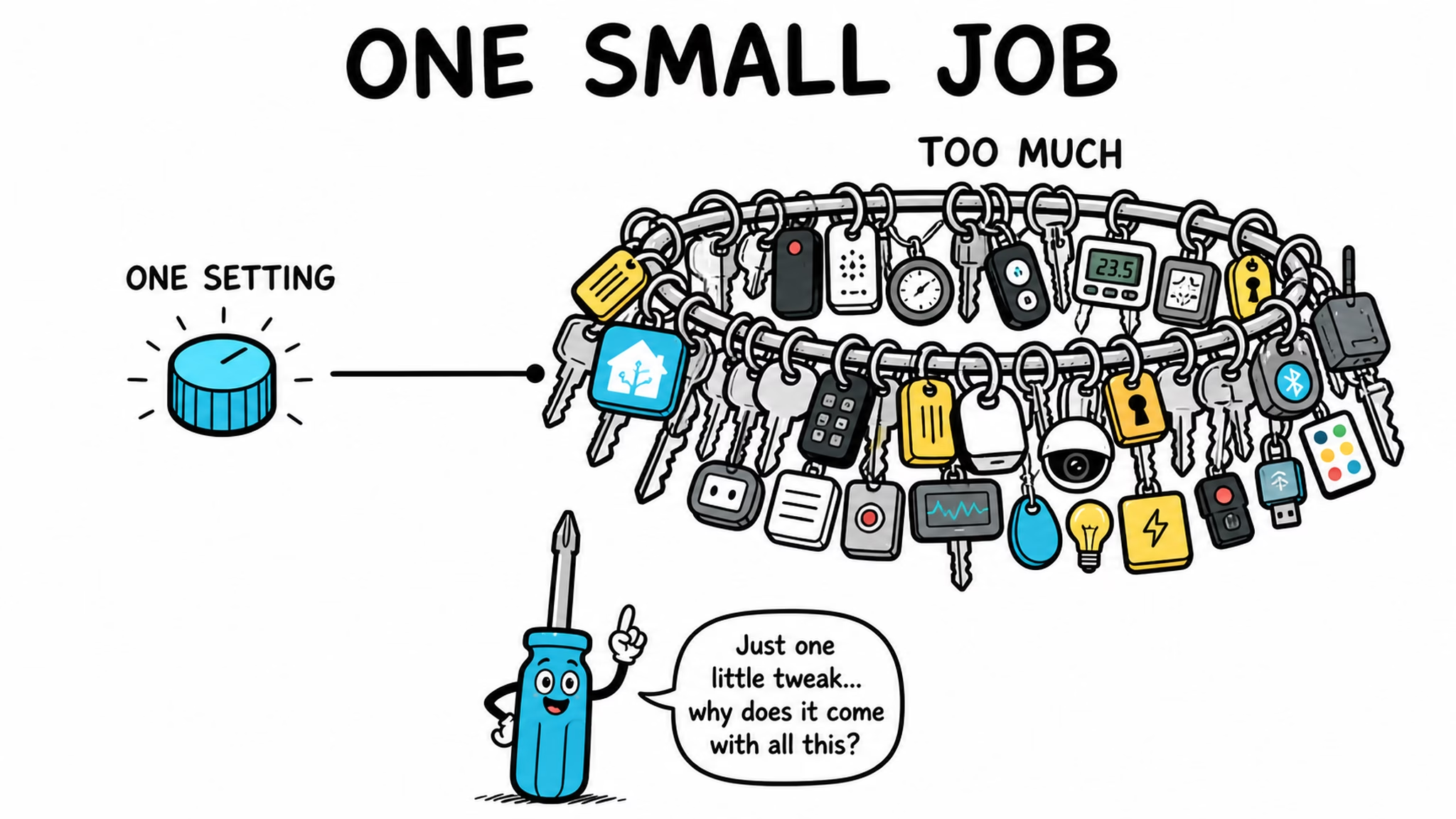
That is a rough way to teach people. A label such as “advanced” can sound like a test. It tells you who a setting is supposedly for, but it does not tell you what the setting does. And then a perfectly useful option starts to look like something you should not touch.
The public Home Assistant plan for removing the old switch explains the better idea: deal with each hidden item on its own. Some Home Assistant settings should simply show up for admins. Some should be tucked under Show more. Others belong right beside the thing they change. That is much easier to understand than one global Home Assistant advanced mode switch.
Tired of reading?
I made a short video about where Home Assistant advanced mode goes and how to read older guides without getting stuck on the first line. Watch it on YouTube. It is a simple face-cam video with a few visual examples, so you can see the change without sitting through a long screen recording.
The useful bit is not hunting for a new secret menu. It is knowing what to look for next. If an old tutorial tells you to turn on Home Assistant advanced mode, skip that line for now and find the feature it actually names.
Three better places for a setting
Most of this Home Assistant advanced mode cleanup comes down to three simple choices. First, show the setting when the right person needs it. Second, put it under Show more when it is useful but should not be in everybody’s face all day. Third, place it beside the thing it controls, because that is where people will look anyway.
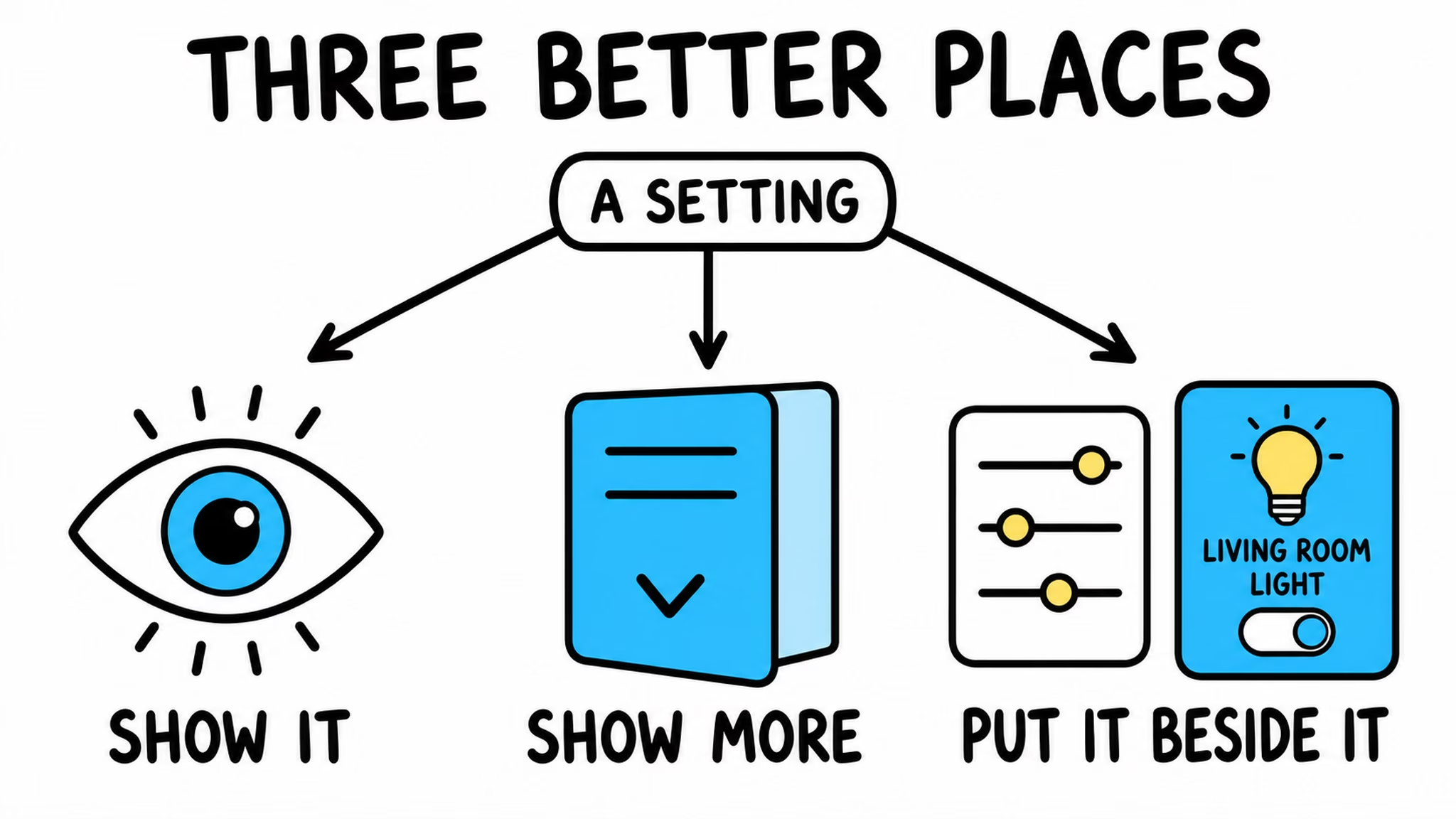
This is not a promise that every old option appears in the same place for every install right now. Home Assistant is changing the old setup bit by bit. It also does not erase the difference between an admin and a normal user. It just removes the strange extra step where a broad Home Assistant advanced mode switch had to be on before you could even see what was available.
I like this because it gives people a useful clue. A normal label can tell you what a control changes. “Show more” says there is more detail if you want it. A setting beside an integration, device, or feature tells you exactly where it belongs. Nobody needs a computer science badge to click a button with a good name.
The scary words are going too
The switch is only part of the Home Assistant advanced mode story. Home Assistant says it is also removing labels such as “advanced” and “expert” in around 43 places across the app, documentation, and companion apps. The features stay. The wording changes.
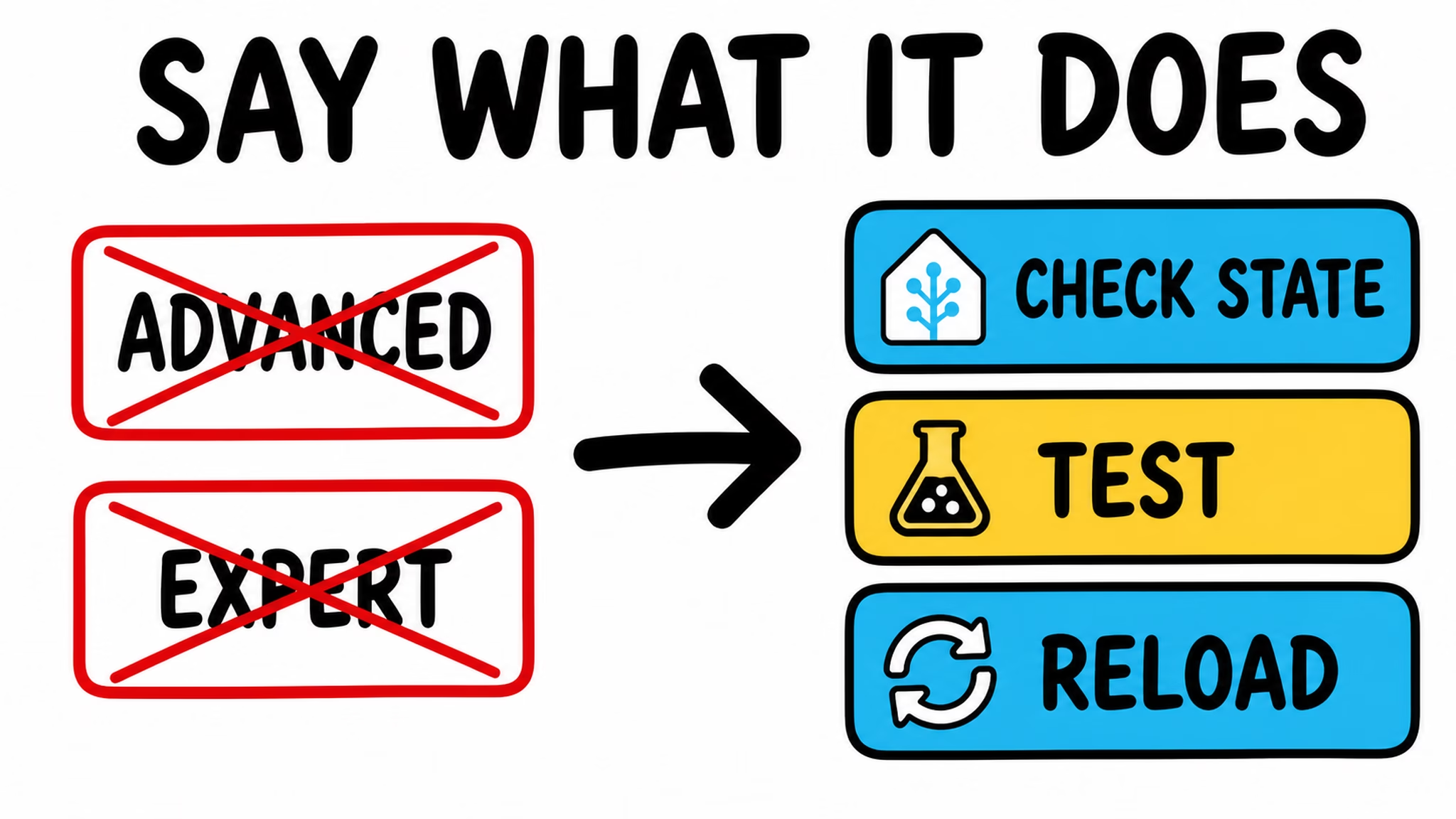
That is the part I really like. “Check state,” “test,” and “reload” are plain descriptions. They are not magic words, but they give you a starting point. You can decide if the option is relevant without first wondering whether you are the right type of Home Assistant person.
A good example is Developer Tools becoming simply Tools. You might use it to check a sensor value, test a small template, or reload part of your setup. Those are normal jobs. Calling the page Tools makes much more sense. It is a toolbox, not a room where only developers are allowed to breathe.
What to do when an old guide says “enable Advanced mode”
Old guides are not suddenly useless. Treat the Home Assistant advanced mode line as an old clue, not a rule. Read the next instruction and look for the real feature name. If the guide says Developer Tools, open Tools. If it names an option, go to the page for that option. If you cannot see it, look for Show more.
Then read any warning that is actually on the page. A real warning tells you what could happen. That is far better than an old Home Assistant advanced mode label that makes everything sound dangerous before you even know what it is.
Home Assistant moves things around as it grows, so feature names are usually more helpful than old step numbers. The old guide may be showing you the destination. It just may be using yesterday’s directions to get there. Even my GPS occasionally sends me through a field, so I try not to take it personally.
A free Home Assistant glossary if the words still feel strange
Home Assistant advanced mode might be disappearing, but the app still has words such as entity, integration, template, automation, and helper. If those words feel like they were picked from a hat, get my free Home Assistant glossary PDF. It explains the common Home Assistant words and acronyms in plain English.
To get the PDF, type your name and e-mail. You will receive an e-mail from me to confirm you are not a robot, and the PDF will be sent to your inbox. You will also be subscribed to my newsletter where I share new content, updates, and my exclusive AI and Home Assistant challenge. It is free, and you can unsubscribe anytime with one click.
I also made Home Assistant AI Recipes for people who want practical AI projects at home. The book is free and you only cover shipping. I left my IT job after 20 years and now make videos, trainings, and this book full time, so thank you for helping me keep this useful stuff coming.
If you want more
This Home Assistant advanced mode change is a quiet but helpful cleanup. Settings are easier to find when they explain themselves and live near the thing they affect. Browse more Home Assistant articles here on the site, and keep an eye on the official Home Assistant release notes when you want the exact wording behind a change.
The next time an old guide says “enable Advanced mode,” look for the setting it really wants. The switch may be gone, but the useful feature did not disappear with it.