

What is AI Photo Frame? Let me explain. My Home Assistant dashboard used to show a lovely photo and then say absolutely nothing about it. It was a very polite photo frame. I wanted it to feel a little more like a tiny guide, so I made the picture come with one short line about what it shows. Every step I used is in this PDF that you can get for free.
Now, when the photo changes, a vision-capable AI model can describe it. If the original image has camera details, the result can also include a rough clue about when or where it was taken. The finished dashboard is simple: picture on one side, a small caption beside it. It feels especially suited to a wall tablet, where guests can glance at a photo and get a little context without asking me to narrate my entire holiday album.
I tested the idea with a few travel photos, then gave it a harder job with the Mona Lisa and the Eiffel Tower. That last test was useful because the model had to recognize the image itself, rather than lean on hidden camera information. The result is a fun Home Assistant project, but it is also a good reminder to keep AI descriptions in the “helpful guess” category.
Table of Contents
What the AI Photo Frame does
The dashboard moves to another picture when I tap it, and it can also rotate through the collection on its own. Each new image gets a short caption beside it. I kept the text brief on purpose. A wall display does not need to turn every photograph into a museum audio tour that lasts longer than the visit.

The setup combines Home Assistant’s Collection Image integration with its AI Task tools and a dashboard. The exact configuration is longer than the idea itself, so I put the complete setup, examples, and optional extras in the free PDF guide. This article is about what the finished project feels like and where it can be useful, not a line-by-line build tutorial.
Tired of reading?
If you would rather watch the dashboard change photos and write its little captions (a.k.a AI Photo Frame), the video is here: watch the video. I show the working result first, including the moment where I take away the extra camera clues and see whether the model can still recognize what is in front of it.
The desktop recording makes the screen easier to see, but the layout is meant for a wall tablet. Think of the computer as the workbench and the tablet as the picture frame you actually leave on the wall. In the video, I also show a few real examples rather than asking you to imagine what a tiny caption might look like.
The small details that make it feel personal
A caption like “sunrise over the sea” is already pleasant. When the photo has usable camera metadata, the model may have a date or location clue to work with as well. In my examples, that helped turn a generic travel image into a short note about a sunrise in Greece or a ski slope in Bulgaria. It is a nice extra, not a guarantee. The model can be wrong, and plenty of photos have no useful metadata at all, but the AI Photo Frame can handle that
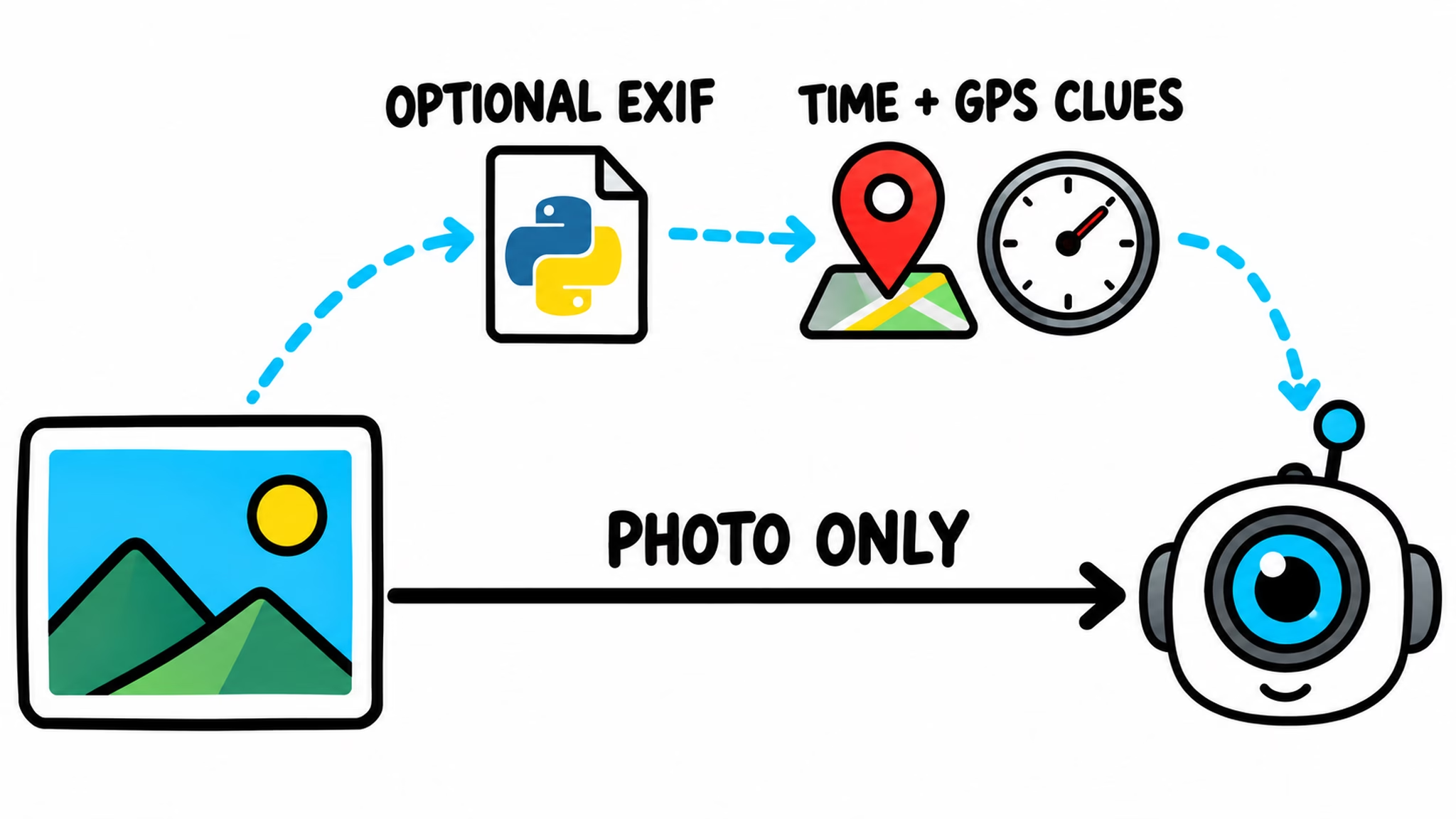
That optional part matters. I can keep the visual description and leave out the date-and-place clues. For many people, that is the better place to start: fewer moving parts, and less chance of putting private location information on a screen that visitors can see.
I used a small sample collection while testing my AI Photo Frame. That made it easier to see what the system did without putting my whole camera roll on display. If you eventually use a shared photo library, the same idea can bring older pictures back into view. It might even answer the question “Where was this taken?” before the seventh person asks. That is not a scientific result, but it is a meaningful household efficiency gain.
Local AI, with realistic expectations
For my test of the AI Photo Frame, I ran a local vision model on a MacBook M1 with 16 GB of memory. I settled on Ministral 3 8B for this setup, and a response usually took around 10 to 15 seconds on my machine. That is my result, not a speed promise for other computers. Model size, hardware, and image size all make a difference.
A local model can keep the image processing for the AI Photo Frame on your own equipment, but it still needs a computer with enough room and power to do the work. Running a large vision model directly on a small Home Assistant appliance may not be a comfortable fit. A stronger computer on your network is one option for the AI Photo Frame. A cloud model is another, but then check the current cost and privacy terms before sending personal photos anywhere.

I also keep this project away from anything important in the house. It describes pictures; it does not decide whether to unlock a door or turn on a heater. A wrong caption can be funny. A wrong safety decision is a different kind of story, and not one I want in my dashboard.
The test that convinced me
Travel photos are forgiving. A lake, a beach, or a mountain gives the model plenty to describe. I wanted to know whether the visual part worked when I removed the extra clues, so I tried two recognizable images: the Mona Lisa and the Eiffel Tower. It recognized both in my test.
That does not mean every model will identify every image correctly. It did show me that the project is more than a caption glued beside a slideshow. The photo itself can be enough for a useful result, while camera metadata remains an optional bonus. If the model is unsure, I would rather see it say so than confidently relocate the Eiffel Tower to my kitchen.
Get the full setup in the PDF
I put the complete build in the free Home Assistant Wall Tablet Photo Narrator PDF guide. It covers the dashboard and automation, the local AI options, and the extra camera-metadata path for anyone who wants it. The EXIF steps are optional; the basic visual narrator does not depend on them.
To get the PDF, enter your name and email. I will send a confirmation email so you can prove you are a real person, then the guide goes to your inbox. You will also join my free newsletter for new content, updates, and my AI and Home Assistant challenge. You can unsubscribe with one click.
One more Home Assistant idea for your notebook
If this project gives you another idea for your home, my Home Assistant AI Recipes book can help you keep those experiments in one place. It is cheaper than explaining to your tablet why the shopping list is now called “AI photo frame ideas.”
If you want more
Browse more of my Home Assistant AI articles, or read the official Collection Image integration documentation and AI Task documentation. If you want to try the same kind of local model setup I used the PDF is the place to start for the full photo-narrator build.
What an interesting idea! I would strongly advise against using cloud-AI for that (those companies already know us far too good)