

Why Home Assistant AI Setup topic again? Because, home Assistant has a new AI page with a one-click switch for its MCP server. I wanted to know if that meant I could connect Claude, ChatGPT, and Cursor to my smart home in one click and walk away. The honest answer is a little less dramatic, but much more useful.
The switch does make the Home Assistant side easier. It gives compatible AI apps a proper connection point. But every AI app still needs its own connection and sign-in. That is not a complaint. It is the bit that stops a nice new button from becoming a surprise house-wide experiment.
My Home Assistant AI setup test stayed deliberately small. I used three lighting demos: an automation draft from Claude, a fixed lighting scene with Cursor, and a ChatGPT-triggered script that temporarily changes lights and then puts them back. No garage doors. No locks. No heating. I like my house, and I would like it to remain recognisable.
Table of Contents
Tired of reading?
The full video shows the three demos and the honest human-review step before anything is saved.
The video is the quick tour. The PDF is where I kept the complete connection notes, client differences, safe prompts, and test guidance.
What the one-click button really changes
The new Home Assistant AI setup gives you a simpler way to turn on the Model Context Protocol server. MCP is a shared way for an AI app to talk to another tool. In this case, the tool is Home Assistant.
I think of it like a wall socket. Home Assistant provides the socket. Claude, ChatGPT, Cursor, or another compatible app still needs its own plug and its own sign-in. The socket matters because it is the common starting point, but it does not magically configure every app for you.
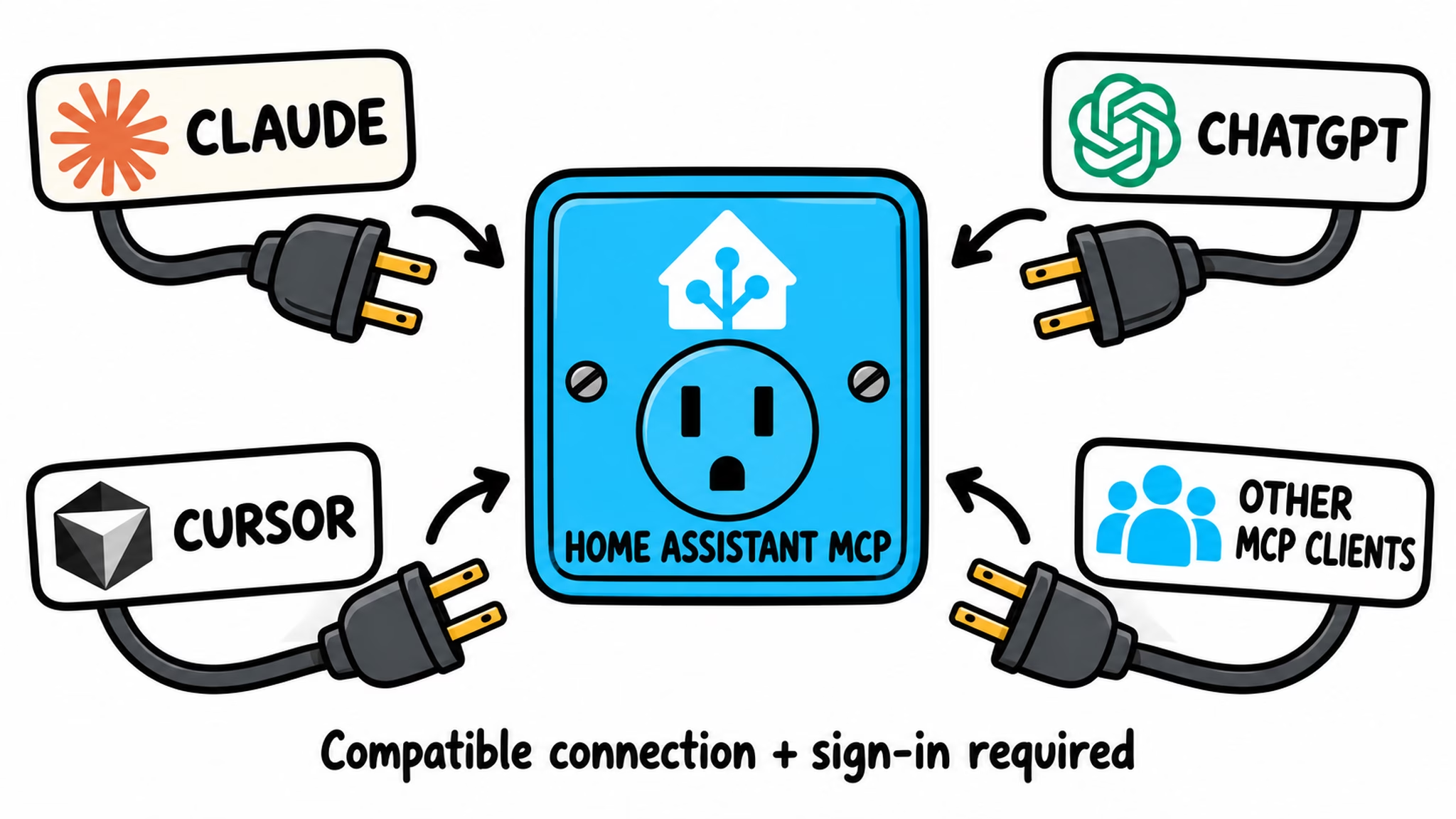
That distinction is worth keeping in your head. A Home Assistant AI setup can make it easier for an AI tool to ask about devices you expose and to use the tools you allow. It does not mean the AI now has unlimited access to every device, dashboard, or secret in your house.
Home Assistant explains the current MCP server integration in its official MCP server documentation. The practical bit is still the same: connect carefully, expose only what the demo needs, and test small jobs first.
The part AI does well, and the part it does not
For this Home Assistant AI setup, the AI is useful as a draft writer. I can describe a goal in normal words and get a starting point instead of an empty editor. Claude can draft an automation. Cursor can draft a scene. ChatGPT can draft a script.
But the built-in Home Assistant Assist API does not save new automations, scenes, or scripts for me. That is important. I review the draft, I save it in Home Assistant, and then Home Assistant runs it. The AI is helping me write. It is not quietly becoming the administrator of my smart home.
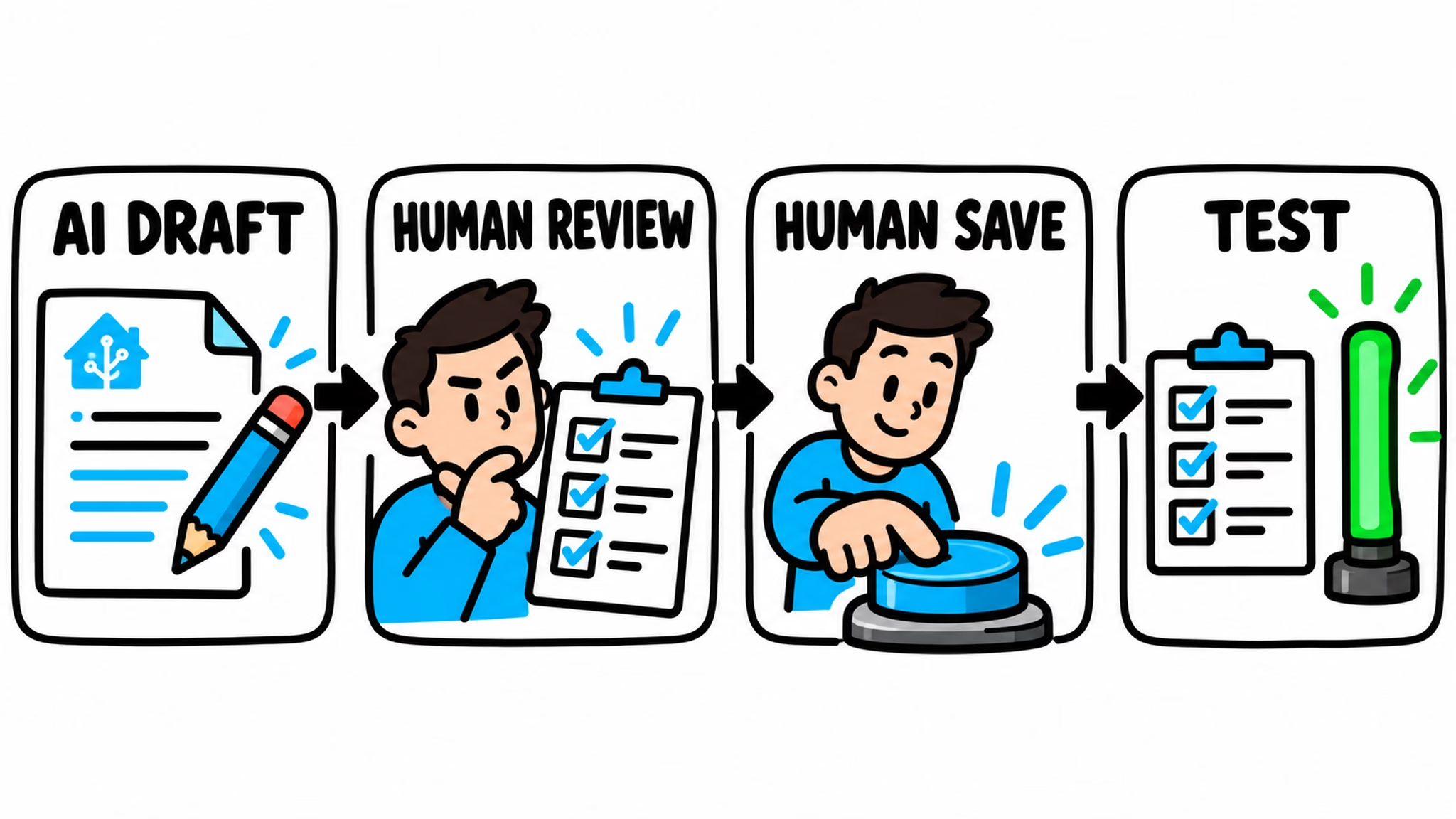
That pattern may feel less flashy than “AI built my smart home while I slept,” but I prefer it. A good Home Assistant AI setup should make the boring part faster without removing the moment where you check what is about to happen.
Why the light undo demo is the one I would keep
The first two demos are useful, but the third one is the fun one. I made a small “snack break” script. It remembers the current state of three lights, turns the living-room lights on, makes the studio strip brighter in green, waits a little, and then restores the previous state.
That restore is the important part. A fixed scene always returns the same look. A snapshot-and-restore script can return to the state that was there before. If a light was already off, it can go back off. If the studio strip was green at a lower brightness, it can go back there too.
Home Assistant owns the snapshot, the wait, and the restore. The AI only helps draft the sequence and trigger the exposed demo. I am not relying on ChatGPT to remember to send another message fifteen seconds later while it is busy thinking about something else.
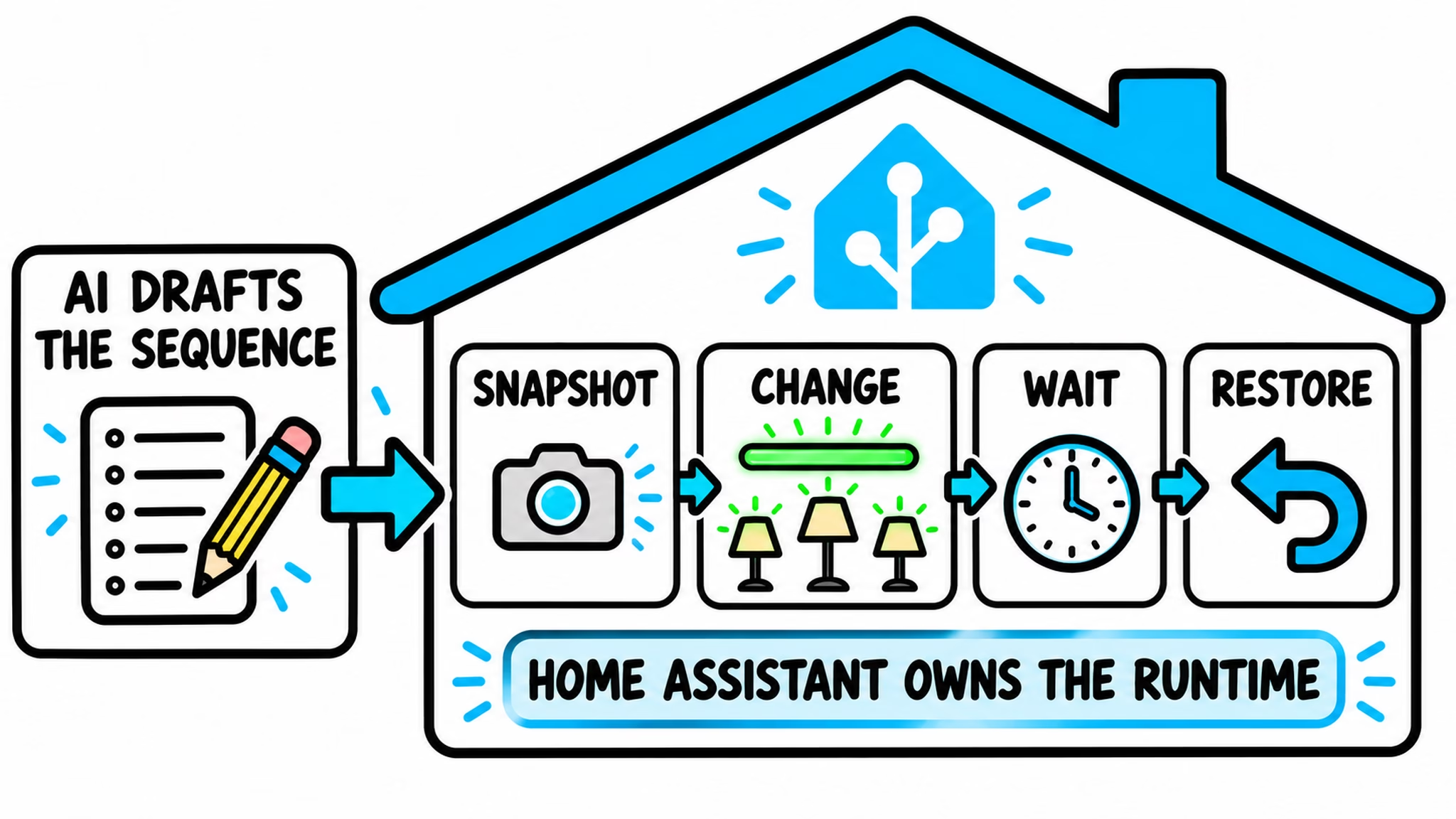
This is why I like the idea. It is not really about using AI to turn lights on. Home Assistant already does that very well. It is about using a Home Assistant AI setup to describe a slightly more useful behaviour, then letting Home Assistant run the reliable part.
Get the full Home Assistant AI setup PDF
The article is intentionally the short version. The free PDF has the exact connection steps for Claude, ChatGPT/Codex, and Cursor, plus the prompts and the checks I would use before trusting a demo.
To get the PDF, type your name and e-mail. You will receive an e-mail from me to confirm you are not a robot, and the PDF will be sent to your inbox. You will also be subscribed to my newsletter where I share new content, updates, and my exclusive AI and HA challenge. It is free and you can unsubscribe anytime with one click.
The one-click switch gets the Home Assistant side ready. The PDF does the less exciting but necessary work: how each AI app connects, what to allow, and how to keep the test small enough that a typo does not become a home renovation.
Start small, then make it yours
A Home Assistant AI setup does not need to start with a giant project. A single light, a simple scene, or a throwaway test automation is enough. The best Home Assistant AI setup is the one you can explain, inspect, and turn off without making a rescue plan.
- Use an AI tool to draft a clear, limited job.
- Review the draft before saving anything.
- Expose only the device or action you need for the test.
- Let Home Assistant handle timers, state changes, and repeatable logic.
- Keep a real device check in the loop instead of trusting chat text alone.
Once that feels normal, there are plenty of useful variations. You can draft a routine, create a safe scene, or build a small reminder that responds to the state of your home. The Home Assistant AI setup is just the bridge. Your limits are what make it sensible.
One more useful AI idea
If you want more ideas after this, my Home Assistant AI Recipes book has local and cloud AI recipes you can try. I bought the printed book for you. You only cover shipping and handling. It is also useful if you prefer writing down the good bits before a dashboard turns into homework.
If you want more
I have more practical guides in the Home Assistant category. The theme is usually the same: use the clever feature, keep the boundaries clear, and let the reliable part stay reliable.
For this one, start with lights. Your garage door does not need a snack break.