
What are Home Assistant Trigger IDs? I wanted one Home Assistant automation to tell me which family-room window had been left open, without making a copy of the same rule for every window. That is where Home Assistant trigger IDs become useful. They let one automation recognize what started it and choose the right response.
Picture two windows in the same room. Either one can be left open late. A generic “a window is open” message makes me walk over and inspect both. A message that names the left or right window is far more useful, especially when I am already halfway to bed. The obvious solution is to build two automations. Then I think about the other doors and windows, and the copy-and-paste job starts to look less fun.
Home Assistant trigger IDs solve the “which one?” part. I can keep the common rule in one place while each window gets its own message. Trigger IDs have been around for years. Since Home Assistant 2026.10, the editor has let me choose the actual trigger in a Triggered by picker. That is still how the visual editor works in later versions: I select the trigger I mean instead of inventing and remembering an ID by hand.
I made a two-window example for the video. It waits for a window to stay open for five minutes, checks whether it is nighttime, then creates a Home Assistant notification naming the window. The two notifications are deliberately plain. This is a teaching example, not a claim that my real family room has suddenly developed a serious window problem.
That is the maintenance problem I care about. Imagine changing the quiet hours next month. With copies, I would need to find every window automation, make the same edit, and hope I had not missed one. With a shared rule, the common decision is visible in one place. Each window can still get a different message, so I do not have to trade useful detail for tidy organization. Two windows make the idea easy to follow on screen. The same pattern could cover more openings, as long as the automation remains pleasant to read.
Table of Contents
Tired of reading?
I walk through the two-window automation and the new editor behavior in the video. Watch the Home Assistant trigger IDs video here once the video is live. For now, here is the idea without asking you to stare at a wall of YAML.
What Home Assistant trigger IDs actually do
A trigger is what starts an automation. In my example, a window staying open long enough is the trigger. A trigger ID is a name tag for that starting event. The automation can look at the tag and answer the question, “Was it the left window or the right window?” It can then take the matching path. That is the whole trick. No mystery, and no need to make a separate automation just to change one word in a message.
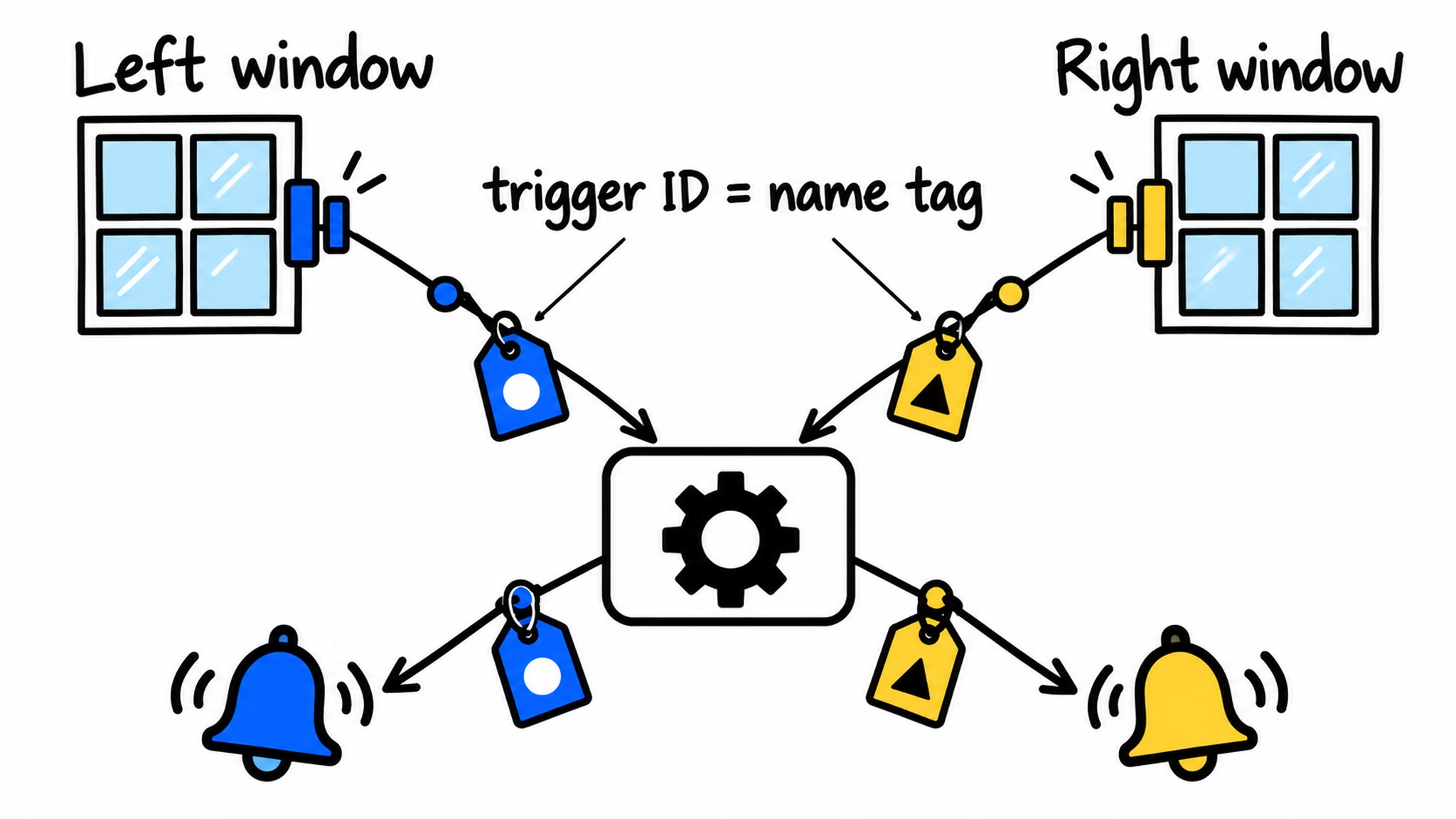
With Home Assistant trigger IDs, the useful part is not the number of windows. It is that the shared behavior stays together. If I later decide that the warning should only run at a different time, I have one rule to review. If I want another door or window to join in, I can extend the same idea with another trigger and another matching response. The example keeps different messages because knowing which opening is still open is the point.
Home Assistant trigger IDs also help when several triggers should do the same thing. In that case, one response can listen to more than one trigger. There are more advanced ways to put the actual sensor name into a shared message, but I would start with a clear result on screen before getting clever. The easiest automation to maintain is often the one I can still understand six months later.
The editor makes the connection easier
Before the picker, I had to create an ID for a trigger, remember what I called it, and use that same ID in the condition that chose the action. It worked, but a typo could turn a simple window alert into a small detective story. The picker lets me connect the condition to the trigger I can see on screen.
The Triggered by condition shows the actual triggers as choices. The editor takes care of its IDs behind the scenes. The Home Assistant trigger documentation explains both the visual picker and manually written YAML IDs. Home Assistant trigger IDs still do the same job; the visual connection between a trigger and its path is simply easier to see.
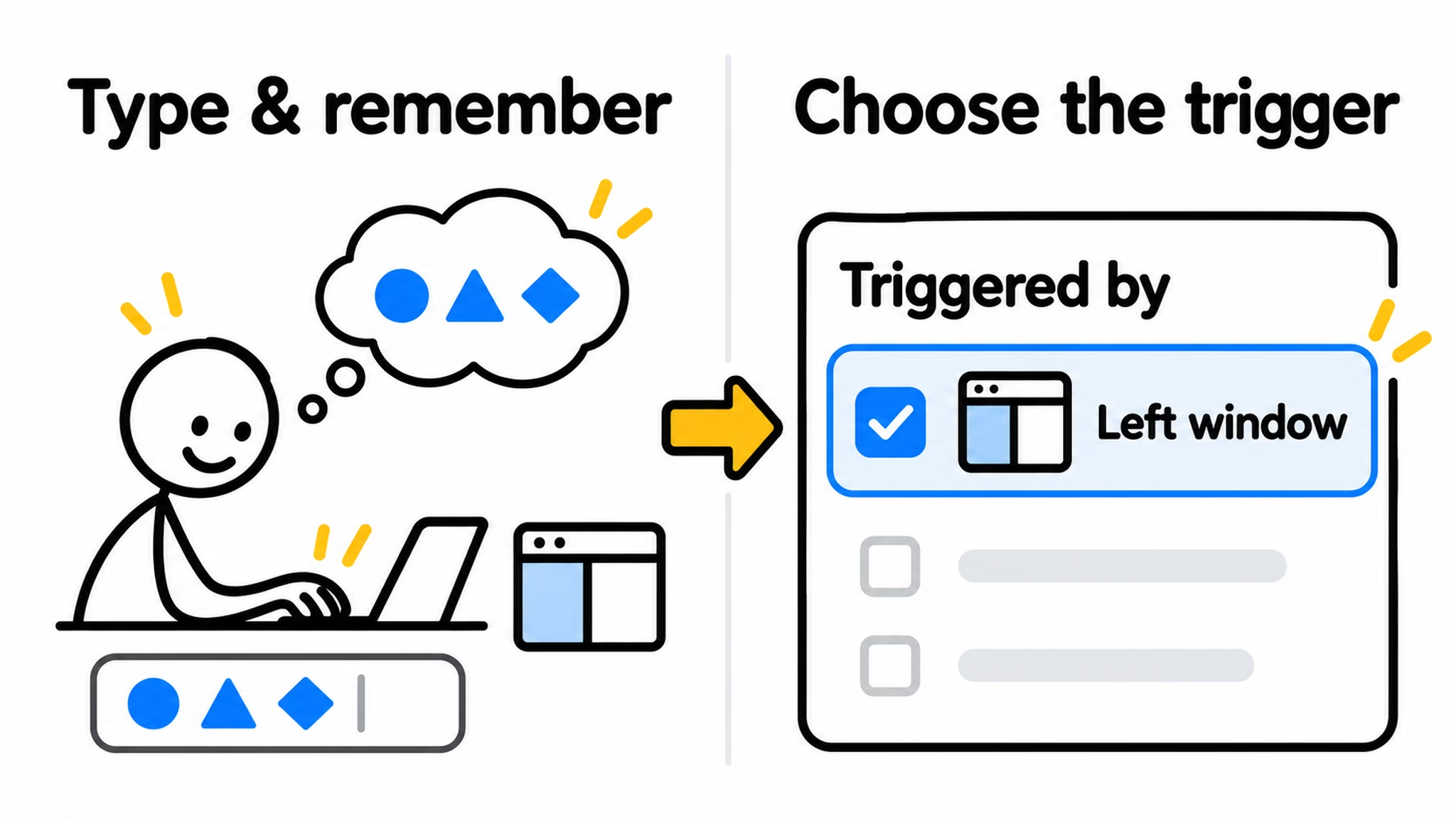
There is one detail worth keeping straight. My shared example file has IDs I wrote myself because I wanted clear names in the YAML. That still works. It does not mean you must type IDs when you build this in the editor, and it does not mean the editor will rewrite your YAML to add my names. The picker and manually named YAML trigger IDs are two routes to the same basic decision: identify what started the automation, then pick the right action.
If you already use a manually written ID as a readable label in a message, look at that automation before changing it. The editor’s generated ID is a wiring detail, not necessarily the friendly text you would want to show a person. Manually written IDs remain useful in YAML, but a visual-editor cleanup is not a good reason to blindly change something that already prints an ID to a notification.
What the two-window example will and will not do
The example checks two family-room windows. After one has stayed open long enough, the automation checks its optional night condition. If the check passes, it follows the left or right path and creates a matching persistent notification inside Home Assistant. These are in-app notifications, not phone push alerts. You could replace them with another action later, but the file I am sharing does not do that.
There is a timing edge case that is easy to miss. Suppose the window has already been open long enough before the night condition starts. The trigger happened earlier, so this version does not send a fresh alert merely because the clock reaches the start of the night window. Home Assistant trigger IDs choose a path after a trigger fires; they do not create a new trigger at the start of the allowed time. If that catch-up behavior matters to you, it needs an additional design choice.
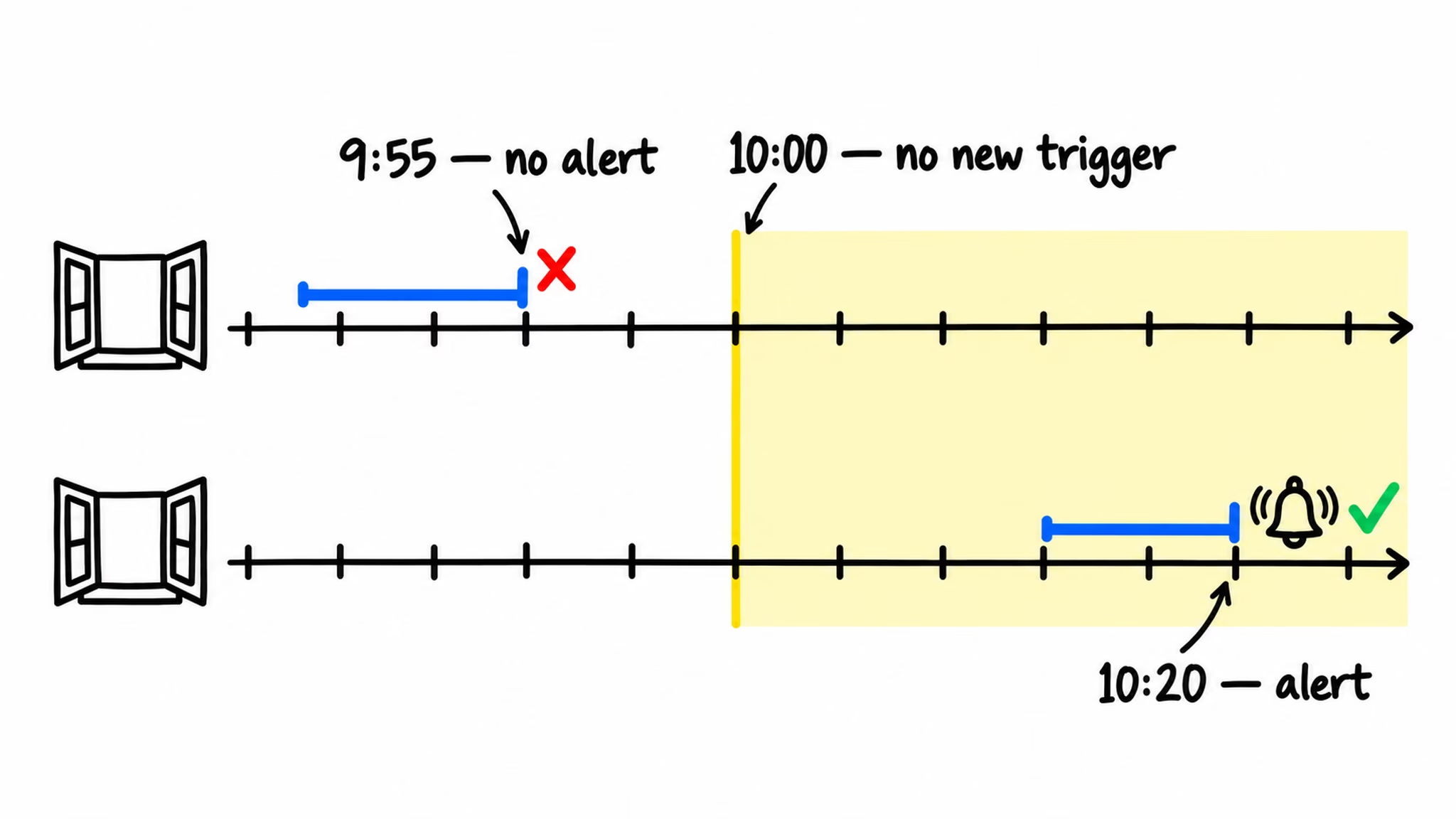
I like calling this out because “my automation has a time condition” can sound like “it checks everything when that time arrives.” Those are different things. Conditions decide whether an automation continues after it starts. They are not alarms by themselves. It is a small distinction, but it decides whether this window example behaves the way you expect.
Get the example YAML and the plain-English glossary
If you want to inspect the exact two-window automation, the Gist file I shared on GitHub has the YAML. Treat it as an example to read and adapt, not a promise that every home has the same sensors or that it includes the catch-up behavior above. The current actions make Home Assistant persistent notifications. The video shows why the paths differ, while the file shows the exact structure.
If “trigger,” “condition,” and “action” still swap name tags in your head, my free Home Assistant glossary PDF puts those words and many others into simple language. It is a good companion to this Home Assistant trigger IDs example. I would rather have you understand why an automation ran than copy something that looks clever and hope it survives the next sleepy evening.
To get the PDF, type your name and e-mail. You will receive an e-mail from me to confirm you are not a robot, and the PDF will be sent to your inbox. You will also be subscribed to my newsletter where I share new content, updates, and my exclusive AI and HA challenge. It is free, and you can unsubscribe anytime with one click.
One rule is easier to live with
The two-window example is small on purpose. I can see which sensor started the automation, which condition applies, and which notification it creates. That makes Home Assistant trigger IDs feel less like a hidden programming feature and more like a useful way to keep related decisions together.
Would I put every door and window in the house into one giant automation? Only if I could still read it comfortably. One rule is easier than a pile of near-identical copies, but a monster rule is not a prize either. Start with a clear pair, name the outcomes, and expand only while the result stays easy to understand. My browser already has enough windows open; Home Assistant does not need the same problem.
If automations are starting to sound like a second language, Home Assistant AI Recipes can give you a few more ideas. Consider it a way to keep the useful ones before your dashboard becomes homework.
If you want more Home Assistant ideas
My earlier article on Home Assistant automation triggers that understand real life looks at trigger behavior from another angle. You can also browse the Home Assistant articles for more practical projects. Use Home Assistant trigger IDs when several events belong to one understandable decision, and let the message tell you which window to close.